Update user group
This page explains how to update an existing user group.
Update User Group
-
In the User Groups list, find the group you want to update.
-
In the Actions column for that group, click the View Group Details (profile) icon. Do not click the Delete Group icon.
-
The group Details screen opens (Details / Subgroups / Permissions tabs).
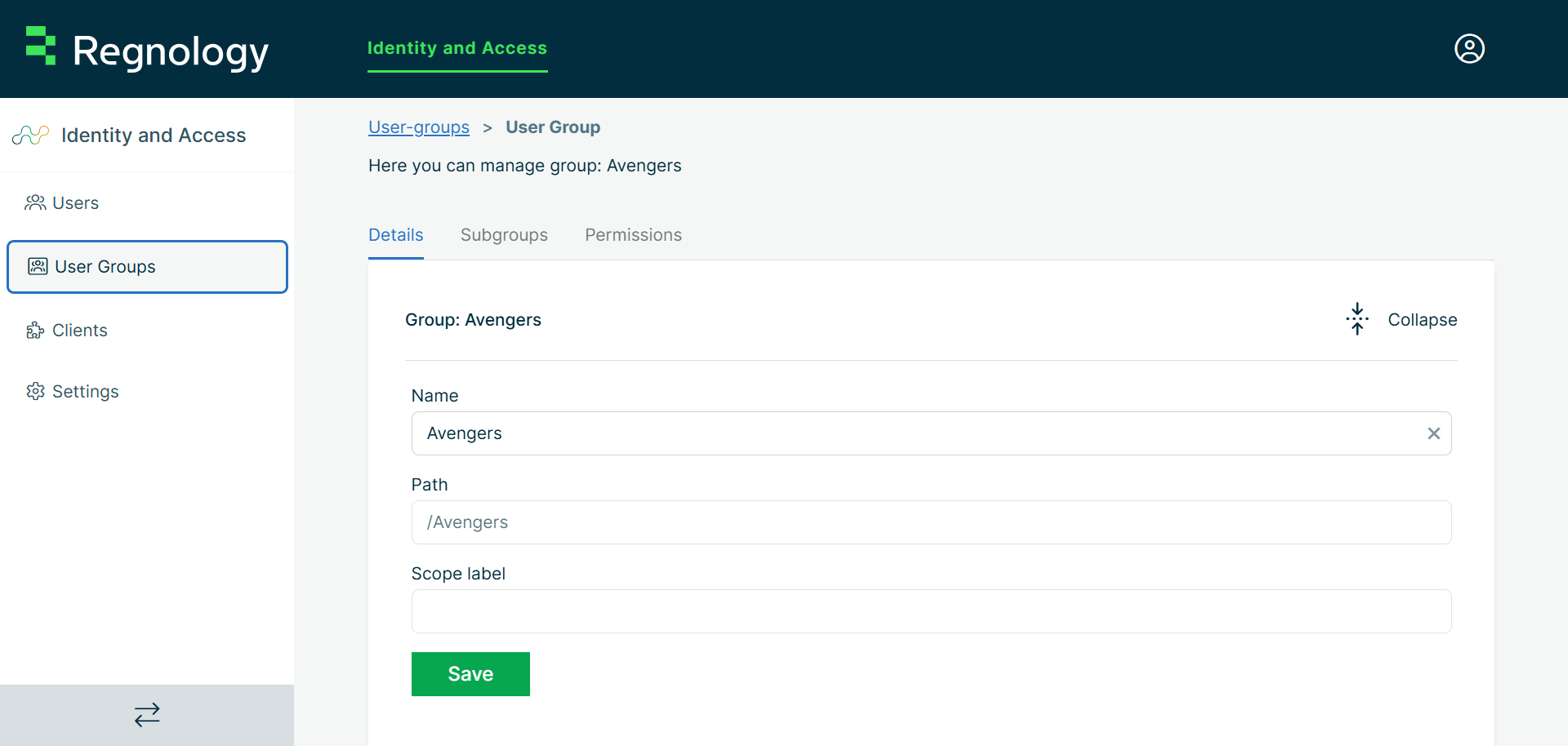
Figure 10. Group Details for Avengers
On Details you can edit Name. Path is shown as read-only (for example “/Avengers”). A scope label can be changed only when the group and all its subgroups have no permissions. Subgroups inherit the parent scope.
The new label must also be within your own scope:
- If you have only unscoped permissions, you cannot change a group from unscoped to scoped.
- If you have only scoped permissions, you cannot change a group from scoped to unscoped. You can select only an entity or entity group inside your own scope.
-
Change Name to “Avengers Assemble” (or another new name).
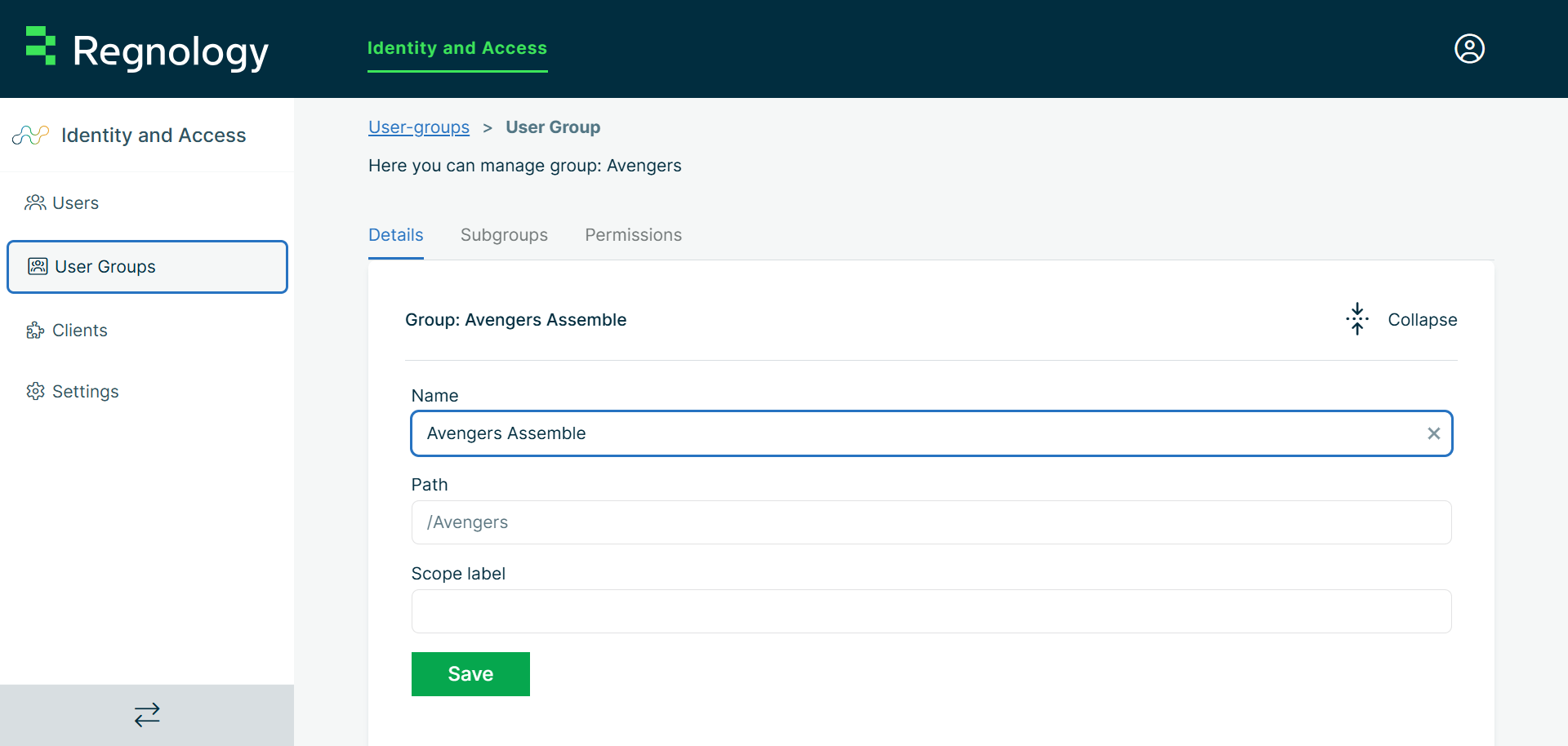
Figure 11. Group Details with updated name Avengers Assemble
-
Click Save.
-
Success message: “Group “Avengers Assemble” was updated”
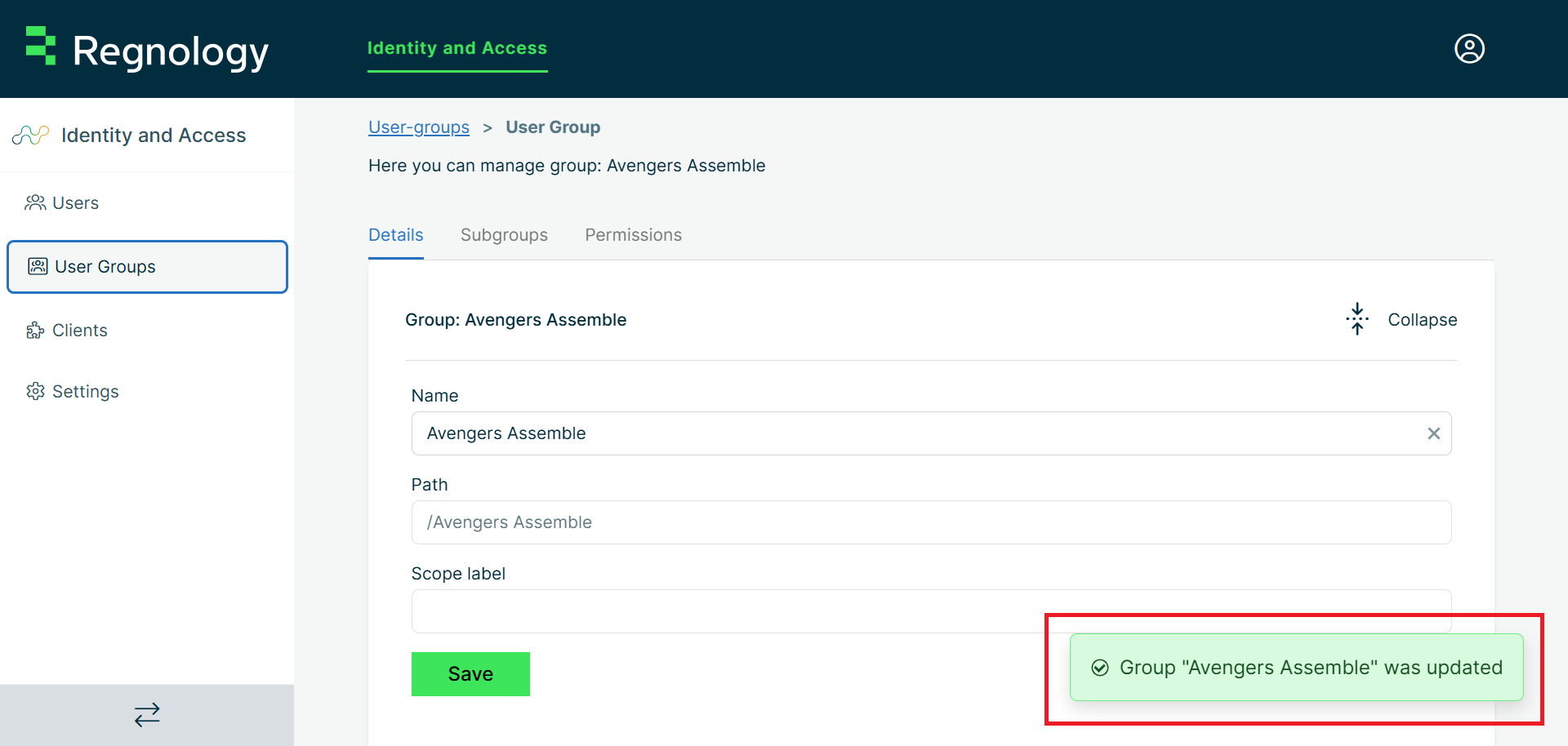
Figure 12. Success message after updating the group name
-
Return to User Groups and confirm the renamed group in the list.
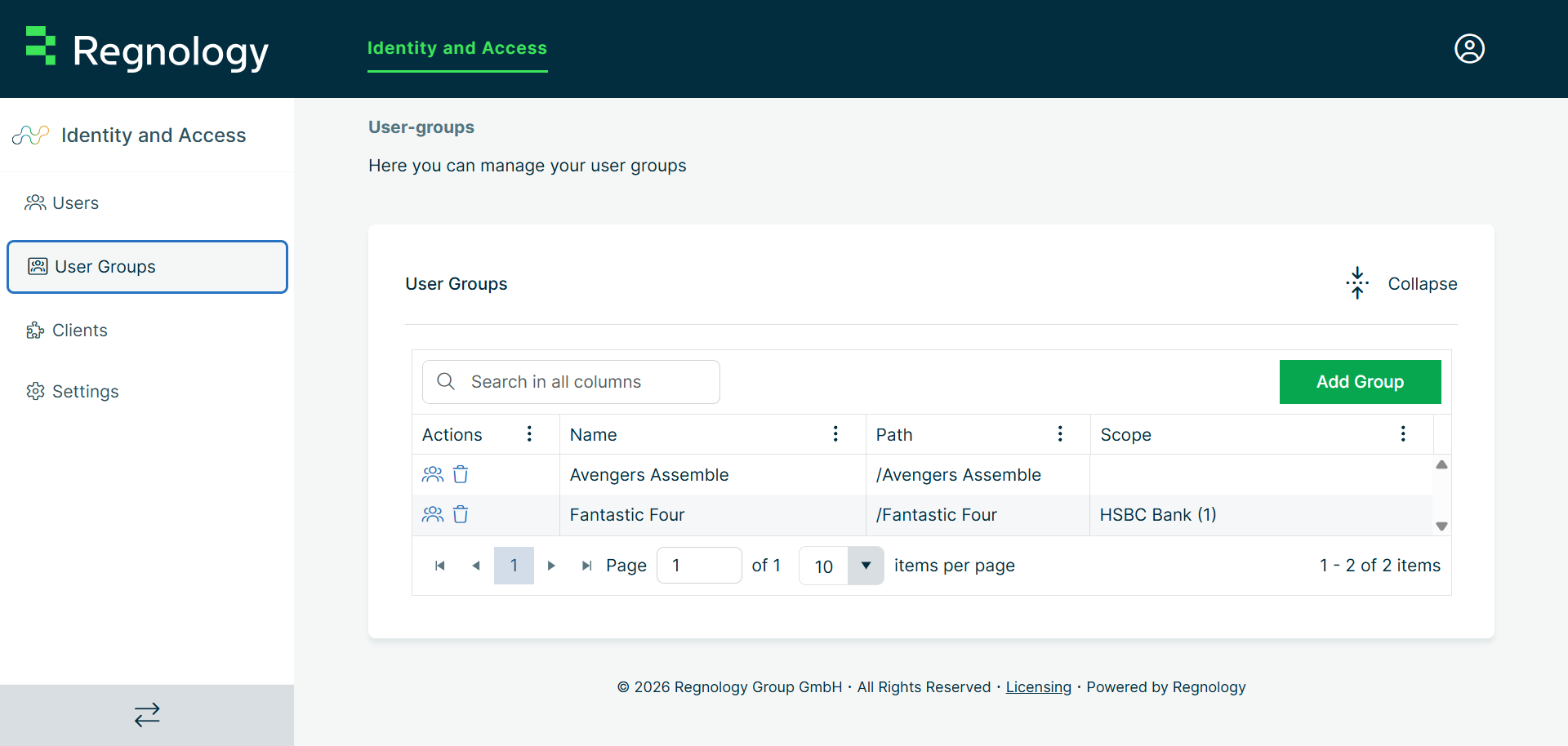
Figure 13. User Groups list after rename