Update client
This page explains how to update an existing client.
Update a client
-
On the Client List, find the client you want to update.
-
In the Actions column for that row, click the Client Details control (puzzle-piece icon). Do not click Get Secret or Delete Client.
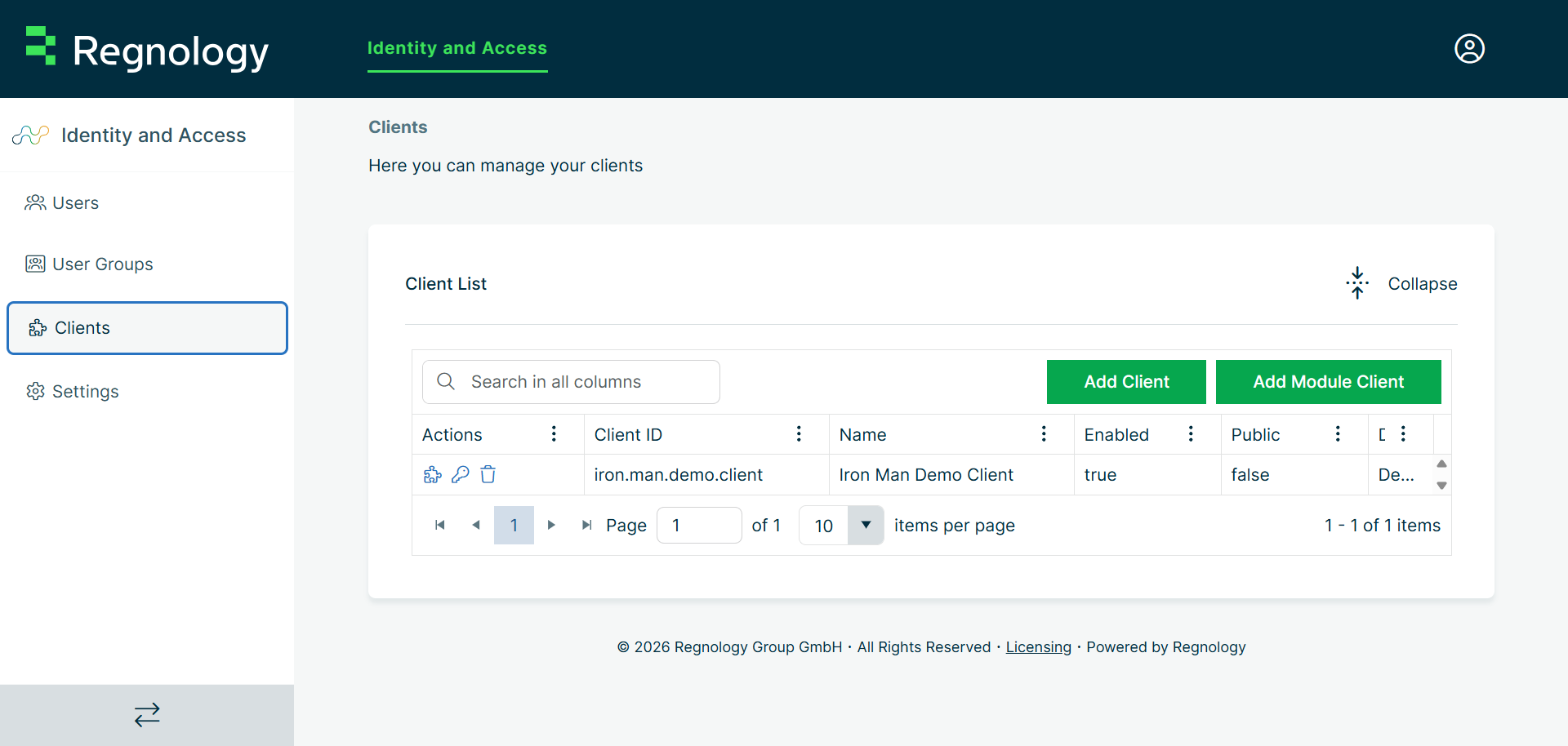
Figure 10. Client List row for iron.man.demo.client before update
-
The client Details screen opens (Details / Permissions / Secret).
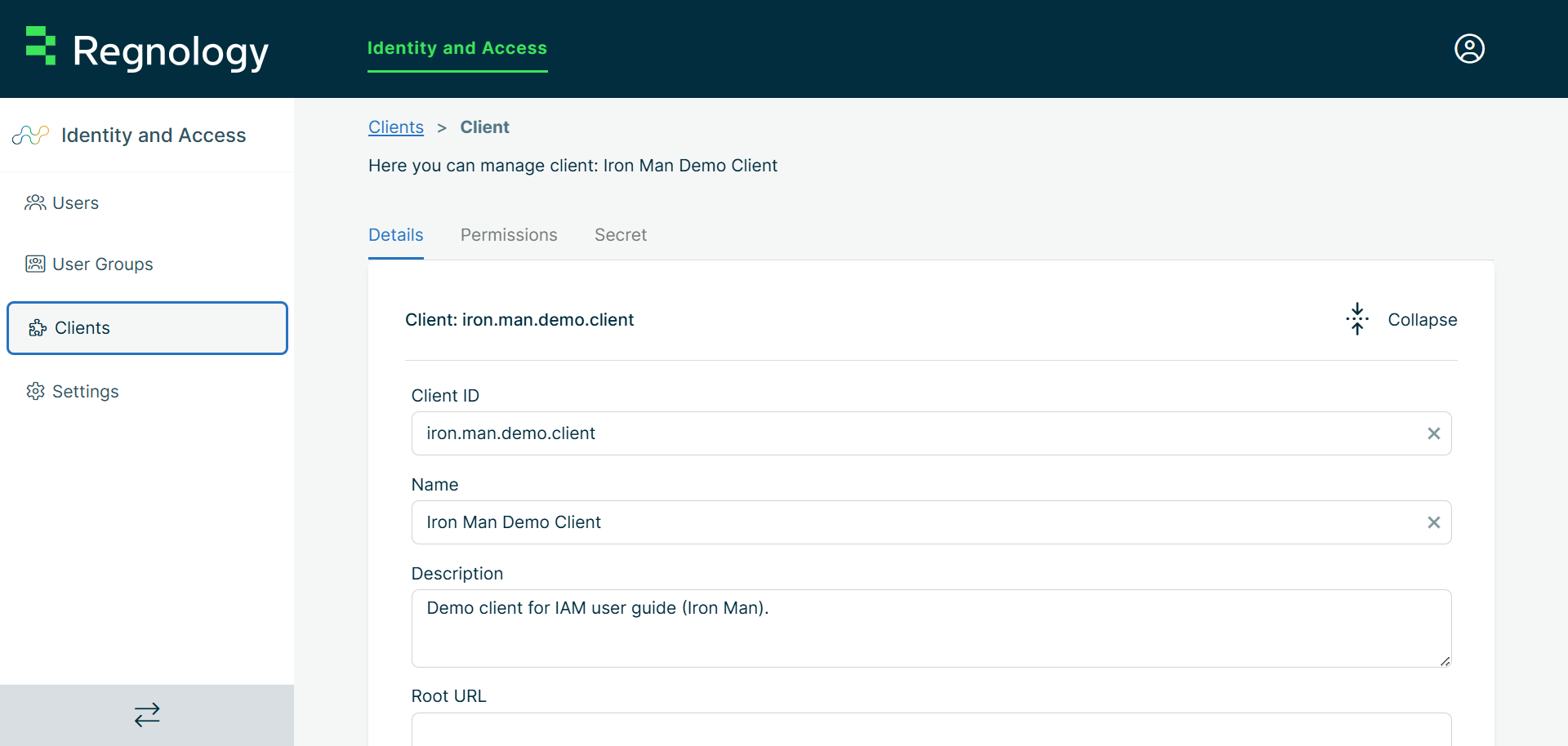
Figure 11. Client Details for iron.man.demo.client
-
Change editable fields as needed (example: set Name to “Iron Man Demo Client Updated”), then click Save.
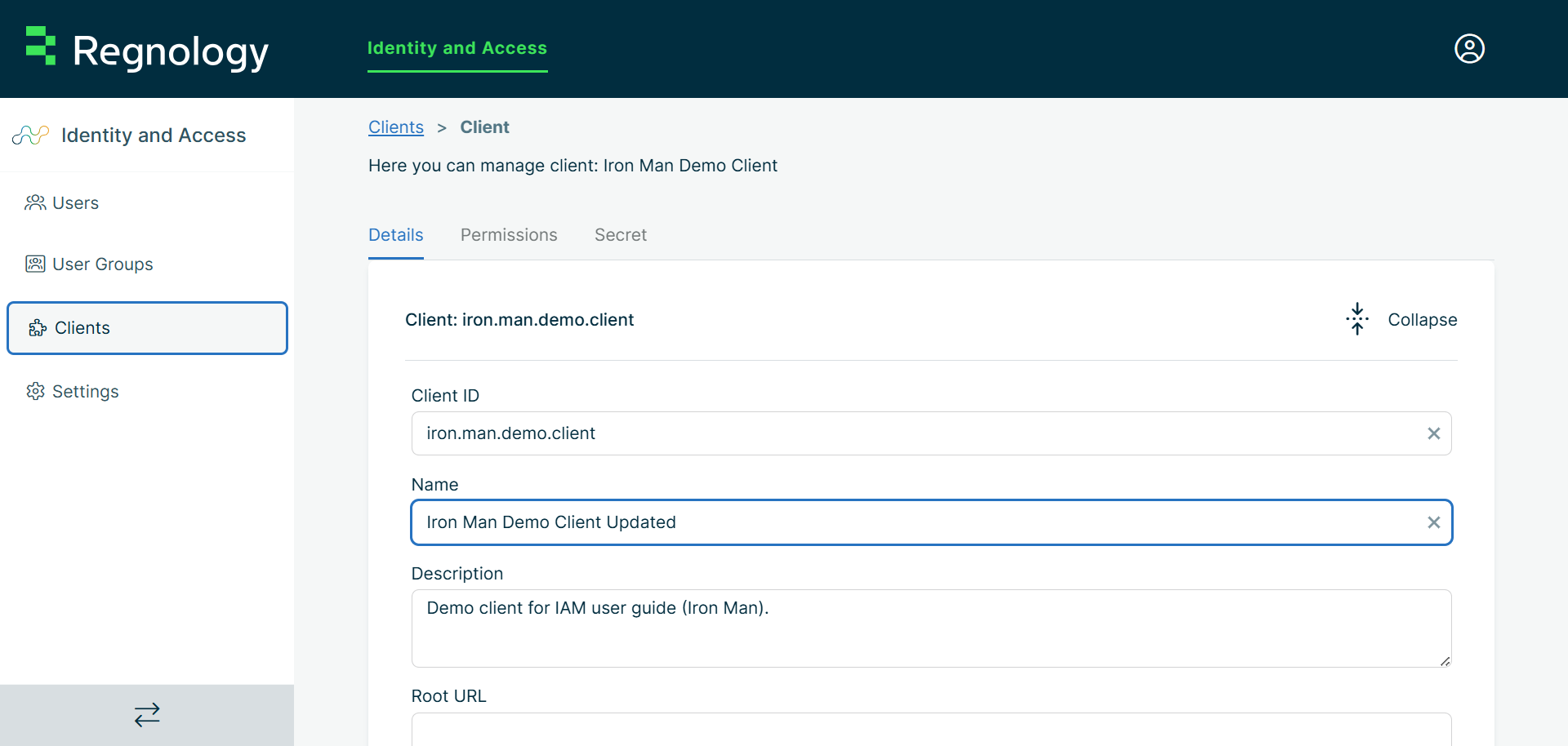
Figure 12. Client Details with Name updated
-
Success message: “Client updated”
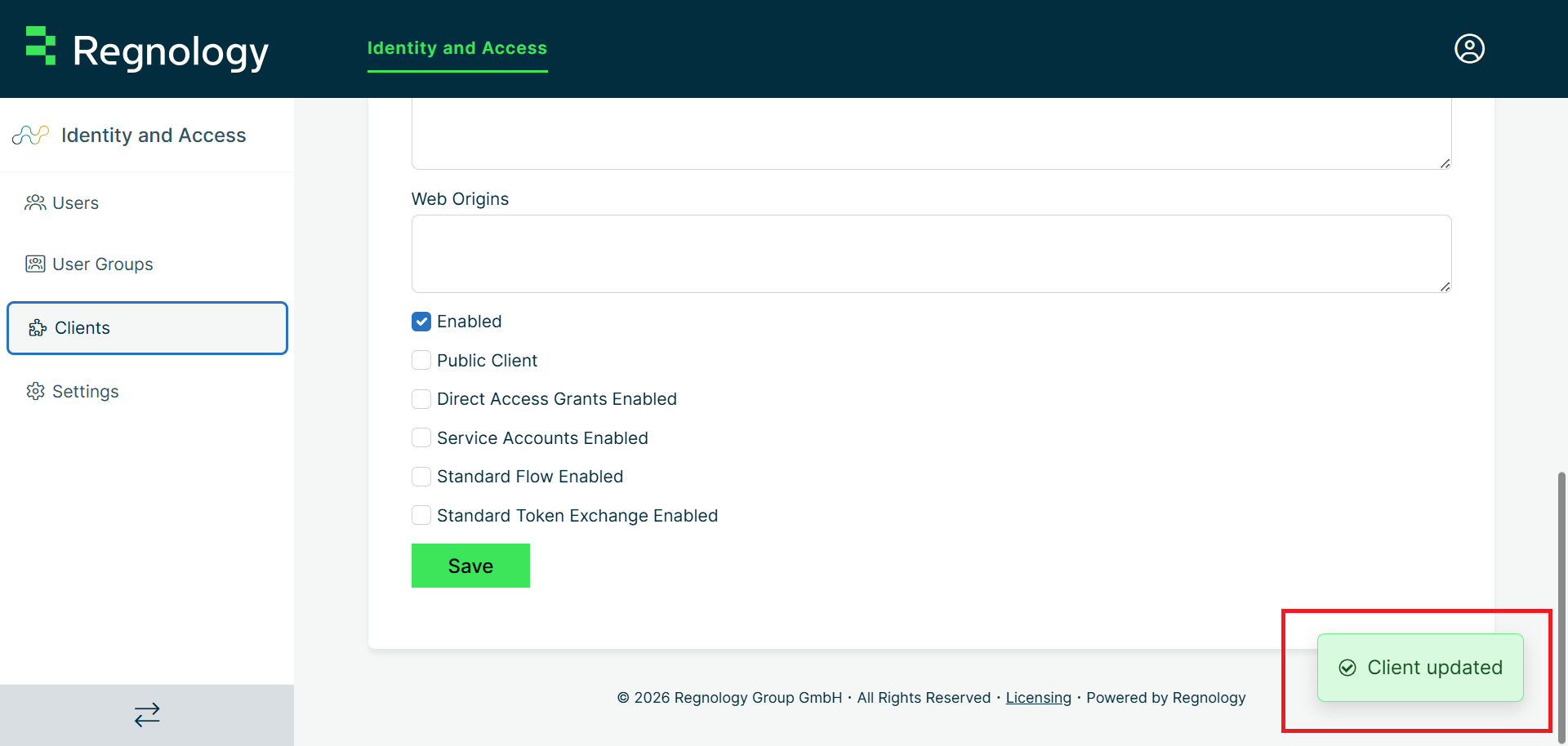
Figure 13. Success message after updating the client
-
Return to the Client List and confirm the updated values are shown.
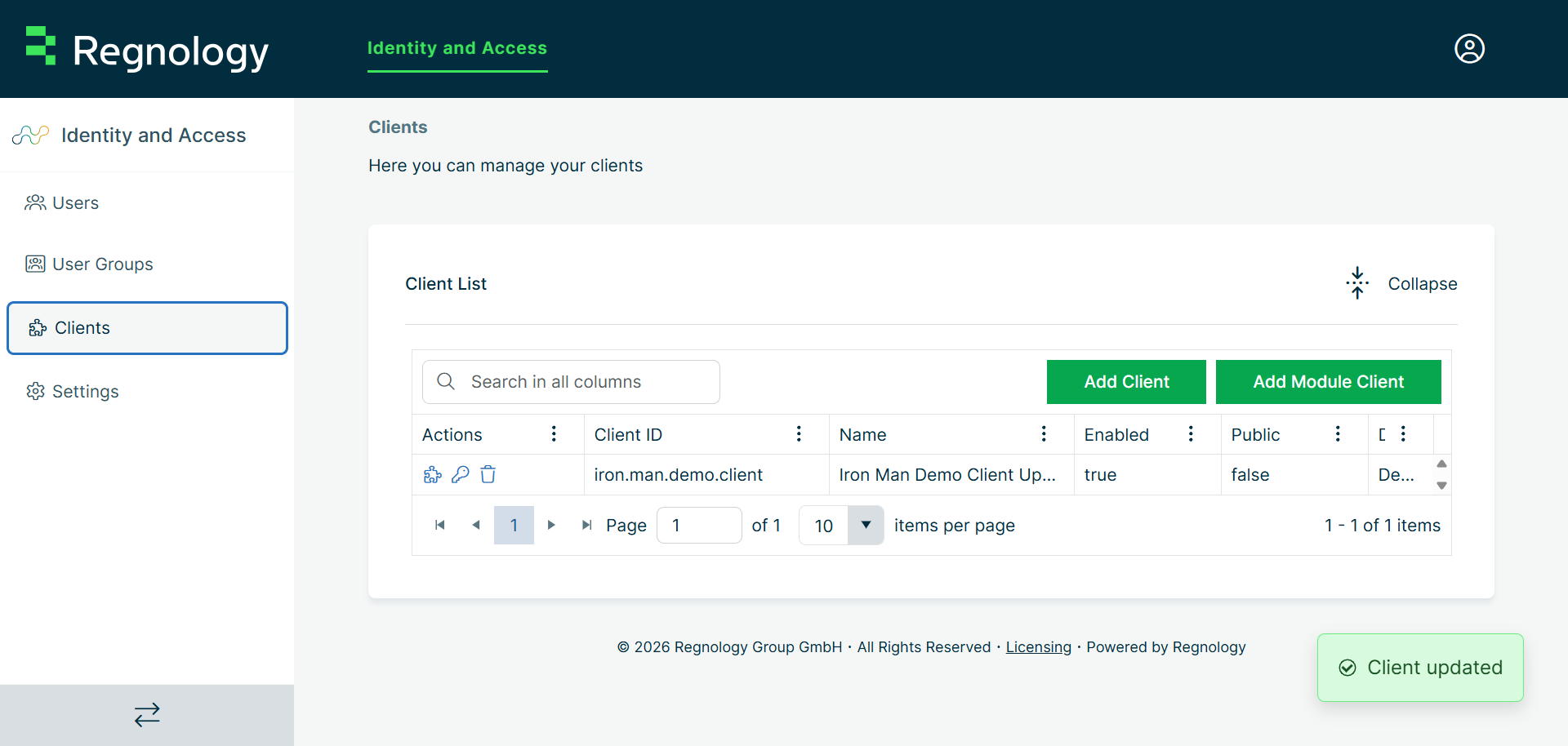
Figure 14. Client List after update