Sign in / Sign out and Navigating IAM
This page covers signing in and out of IAM, and how to navigate the IAM module.
Sign in / Sign out
This section explains how to sign in and sign out in the IAM Application.
Sign in
-
Open your application URL. Choose “Login with SSO” (Keycloak), or enter credentials if local login is enabled.
-
Complete any additional authentication steps if prompted.
Sign out
-
Open the user menu (top-right avatar).
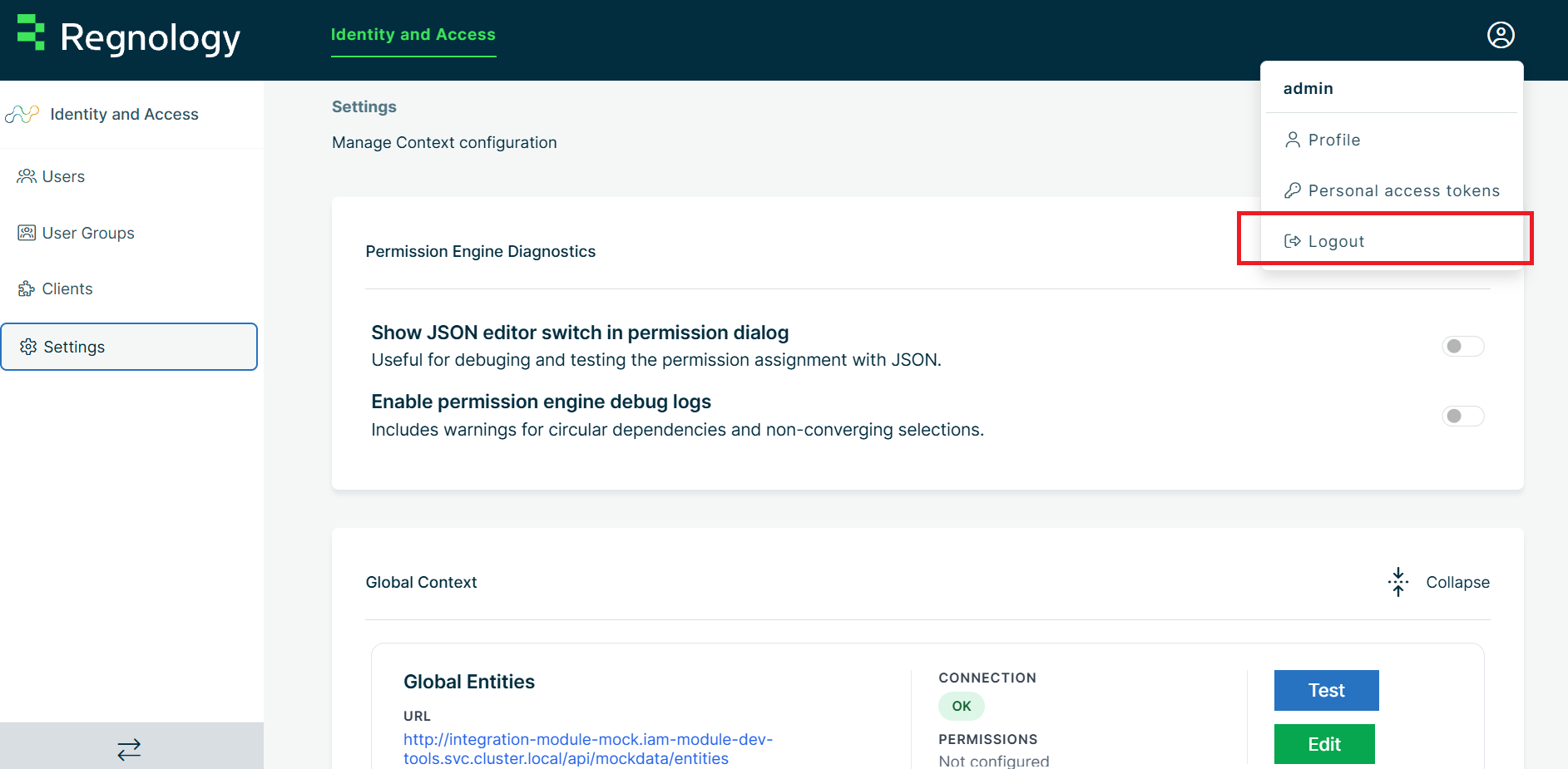
Figure 1. Logout
-
Select “Log out”. You will be redirected to the login screen.
Navigating IAM module
This section explains how to navigate the IAM Application.
The IAM navigation and screens shown after login depend on the logged-in user’s effective permissions. With no IAM permissions, login redirects to the profile page. Personal access tokens remain available from the top-right avatar menu.
-
Open Identity & Access from the main application navigation.
-
Use the IAM left sidebar navigation menu to switch between “Users”, “User Groups”, “Clients” and “Settings”.
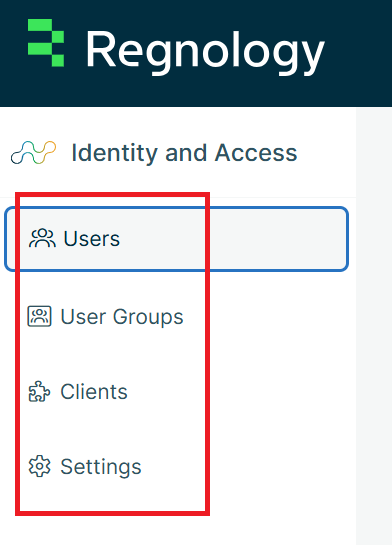
Figure 2. Left Sidebar Navigation Menu
-
Use tab menus (Details, Groups, Permissions, Access, Credentials) to navigate within IAM pages.
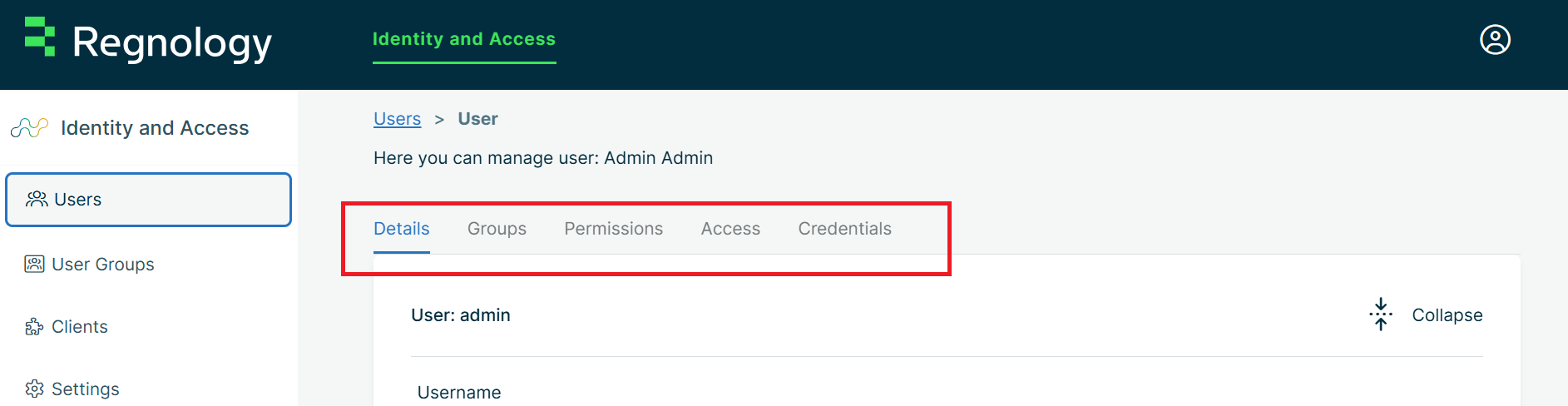
Figure 3. Tab menus inside IAM pages (Details, Groups, Permissions, Access, Credentials)
-
Use the top-right avatar to open the profile page or personal access tokens.
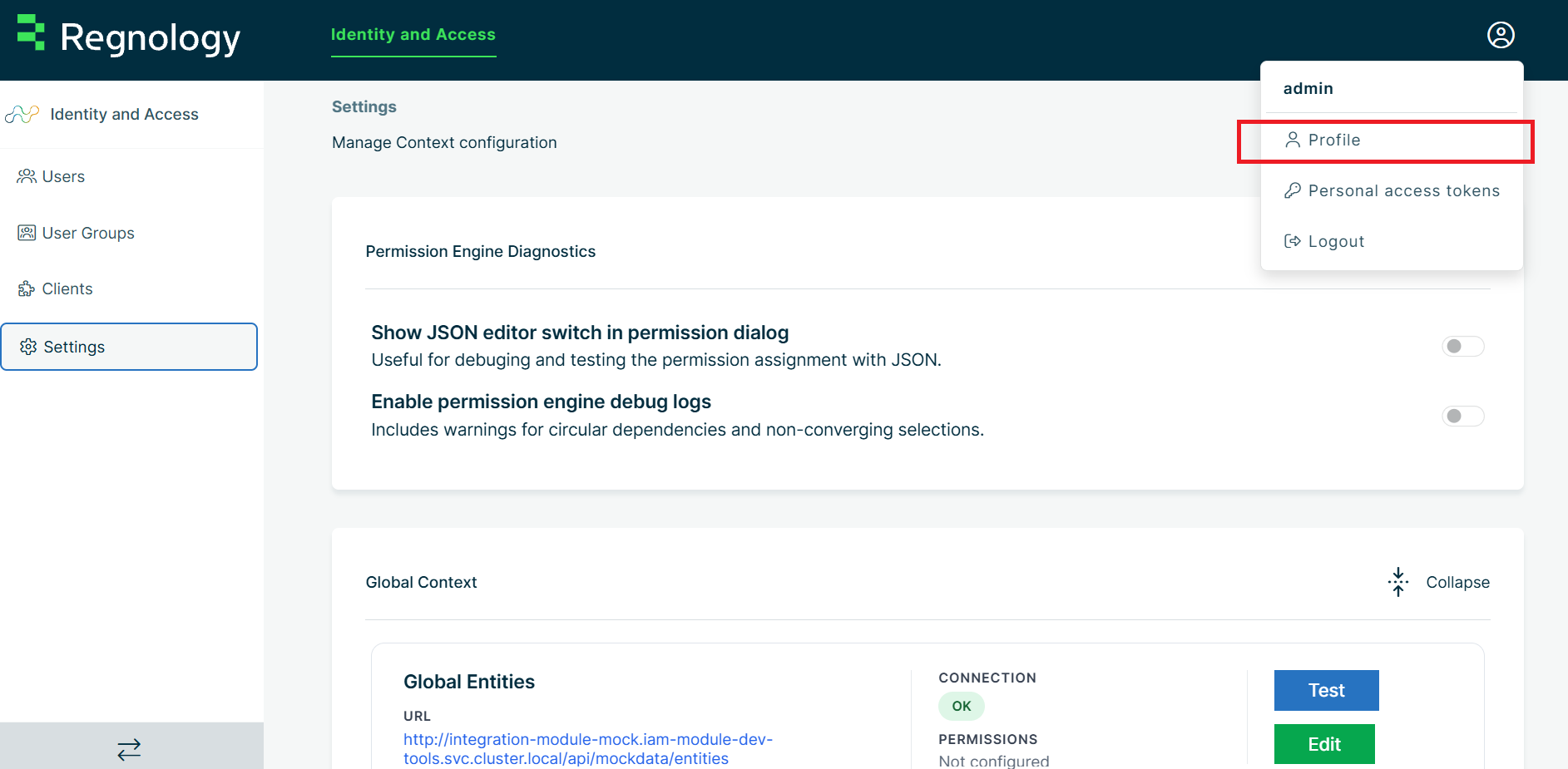
Figure 4. Top-right Avatar -> Profile